The Steam Deck
A review

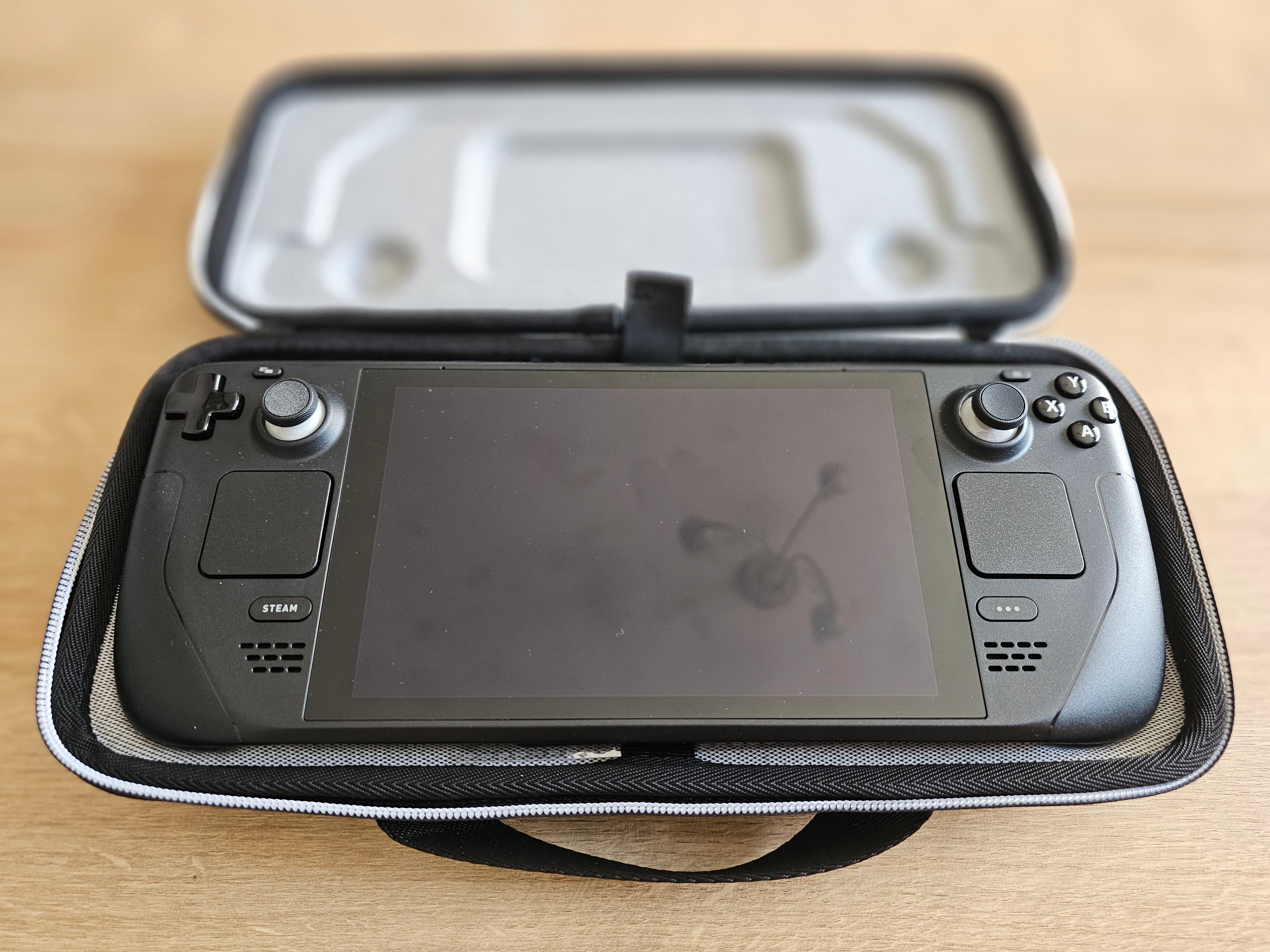
I was recently given the opportunity to try out a Steam Deck (Valve Software) for an extended period of time. It was loaned to me explicitly for the purpose of allowing me to consider the utility and value of owning such a device myself, past that immediate compulsion of ‘new and shiny’. If you know me at all, it might not surprise you to know I have been following the burgeoning handheld gaming PC market, but so far without yet feeling such a strong urge to actually part with any money. In the last few months, my eyes have been increasingly set on the upcoming ROG Ally (ASUS), that looks to be giving some home consoles a run for their money as far as processing power goes. It seemed sensible then to consider how one might fit into my life as a whole. For seven hundred British pounds, it is not as simple as walking down to Curry’s and handing over my hard-earned cash. There is a real need to understand if these devices are a passing fad or if they are the next step in handheld gaming, traditionally dominated by Nintendo.
With this in mind, I set out to push the Steam Deck to its limits whilst I had my time with it and then write a review, primarily to help collect and concretise my thoughts and provide another opportunity to write. I then decided that releasing this review might also help others consider if such a device is for them. There are of course many reviews already available online for a device like this, over a year old, and I think they all do a fair enough job of highlighting some of the more obvious features and capabilities of the Deck or other similar devices. Yet, I still feel like there is a gap to knowing how these devices fare in the nitty-gritty day-to-day and unglamorous use cases of an average non-tech reviewer. Since I am releasing this for others, I will still include a brief and fairly standard overview of the device, much like other reviews, but then I am going to tell you how I feel about the Deck in my day-to-day life, and considerations of how it fares against dedicated gaming PCs, home games consoles and other portable devices such as a laptop or a tablet.
Physical impressions
The Deck is surprisingly large upon first handling and viewing, but not unwieldy. At least in my hands, the Deck feels robust and satisfyingly weighty to hold, whilst being light enough, at ~700 grams, to not itself feel burdensome during medium to long gaming sessions. I will discuss some additional, natural, obstacles later.


Images above illustrate text for much of this section.
The control layout is good, not exceptional or perfect. The main analogue triggers are set up symmetrically on the front of the device - lined up on the x axis - like a Playstation controller, except they are at the top. They are either side of the display with the d-pad to the left and ABXY buttons to the right, as you might expect. The device has the R/L-1 buttons and L/R-2 triggers at the top and rear, that they work fine, and there are ‘view’/‘menu’ buttons to be the start/select buttons. Also on the front are the STEAM and QUICK ACCESS buttons, that directly link to functions within the operating system (OS).
The left- and right-hand sides and rear of the Deck are physically designed as such to form a control handle either side, that whilst not uncomfortable to use, I believe does not match the overall comfort of an Xbox controller.
On the back are four rear buttons, with two on the left and right where the handles form from the main body. These buttons are, I am afraid, not well-designed in my view and, disappointingly, are quite difficult to use during gameplay. I often have to stop engaging in the game itself to actively concentrate and seek them out to try pressing them.


Compare this to the Xbox Elite 2 controller (above), where the back buttons - the top two at least – stick out at a useful angle and so are quite easy to reach from the natural overlap with your fingers holding the handles. They have now become part of my gaming style to the point that the controller almost feels naked without them.
On the top are the exhaust grills for cooling and on the top are the volume buttons, headphone jack, fan exhaust port, type-C USB port, status LED, and power button. There is also a microSD card slot on the bottom.
Finally, there are also two quite interesting and quite unique haptic touchpads underneath the analogue sticks on the front of the device. These act as a sort of mouse (RHS) and scrolling (LHS) combination and I found them to be responsive and precise, far more useful than the right analogue stick for precision mouse movements and selections. They are quite useful when switching between the main SteamOS and desktop modes, which is discussed in more detail later. It seems likely that when considering a potential handheld PC purchase, not having these, such as on the ROG Ally, would be a loss when you don’t have access to an external keyboard and mouse via a USB hub.
A brief technical interlude
The Steam Deck is quite the marvel from a technical standpoint and considering price to power ratio – especially compared to a Switch, but less so compared to a ROG Ally perhaps. For between £350-£570, you are getting a custom-built AMD Zen 2 APU (Accelerated Processing Unit) housing a main processor (CPU) with four cores and eight threads, that Valve and AMD worked on collaboratively to maximise the performance within a low power envelope. As an APU, this chip also houses the integrated Graphics Processing Unit (iGPU) featuring eight RDNA2 CUs (compute units – these are the graphics processors in an APU) with up to 11.6 TFLOPs performance at the maximum 15W iGPU power draw. At this point the entire device could be drawing 25W of power, an important consideration when attempting to understand the potential battery life on the go, away from a charging station. The Deck comes with a 40Whr (5200mAh) battery back Valve predicted to provide two to eight hours of gaming. But with a 40Whr battery and 25W power draw we can see two hours are optimistic, and that is before we consider connected accessories, brightness or the specifics of the game being played.
The Deck comes in multiple storage flavours, starting with 64 GB of internal storage via eMMC or higher priced SSD varieties with either 256 or 512 GB. All versions can be self-upgraded to 1 or 2 TB SSDs, using one of many helpful guides, and expanded further with microSD cards via the slot at the bottom of the deck, up to 1 TB.
The Deck at all price points has a 1200 x 800 pixel 7” LCD touchscreen display with maximum refresh rate of 60 Hz with the top price point also including anti-glare screen coating, although without any VRR (variable refresh rate) technology, seen on the newer ROG Ally, to help smooth out stuttering due to frame rate instability. The display also reaches 2400 nits of brightness, which is fine for indoor gaming.
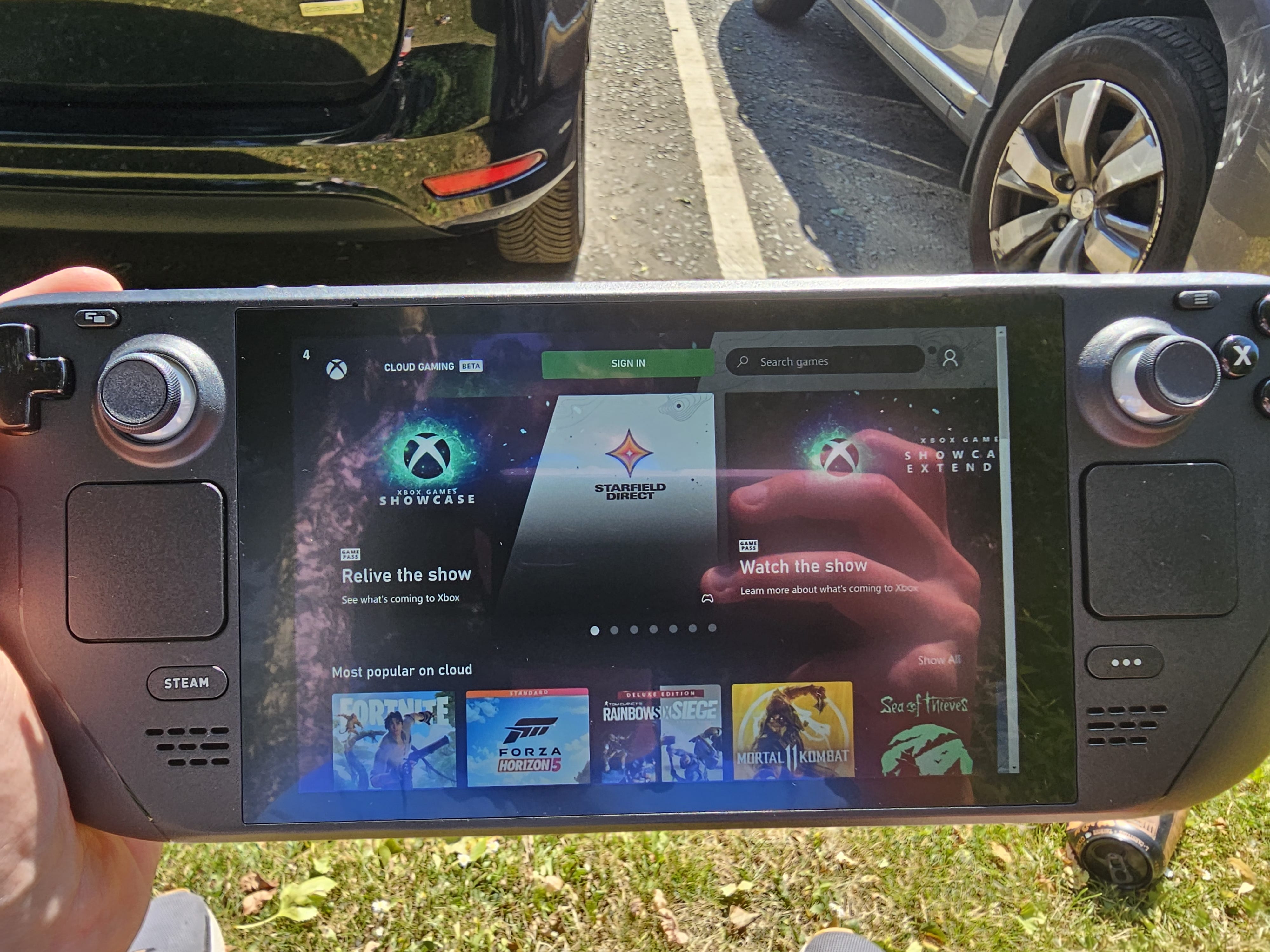
Gaming outside as you might expect is more difficult in direct sunlight, but because it is an LCD and not an OLED, it turns out to be suprisingly usable, if you have a bright and well-lit game (see above). A darker game with dim lighting will become more difficult. Although, with more thought, perhaps direct sunlight should be a sign you have other options available to you?!
For comparison, my smartphone (OLED display) has a peak brightness of between 1200–1750 nits and even as an OLED, it is fully legible in even the brightest sunlight and allows for 3HDR (high dynamic range) content to be displayed. My tablet (OLED) or my laptop (LCD) on the other hand only reach 500 nits, with my TV (OLED) reaching 700 nits peak brightness. An image on the OLEDs is strenuous to see in all but the brightest scenes, whilst my laptop struggles, when faced with indirect sunlight, let alone direct. If you know for sure that you are considering a lot of playtime in sunlit rooms or outside in the sun, it might worth considering the value of the portable gaming handheld like the Deck or the Ally. But in normal or mixed lighting just save your darker games for indoors, heavy shade or dull days. You can see more outdoor gaming in action, in a later video detailing Xbox Game Pass streaming.
All Decks have 16 GB of LPDDR5 RAM shared between CPU and iGPU, which is more than sufficient, in size and speed, considering the overall power and display size. Also included is support for 2.4 and 5 GHz Wi-Fi for connectivity, Bluetooth 5 for audio and controllers, and thanks to the versatile type-C USB port, the Deck can be docked or expanded for use with USB keyboards, mice, controllers and even ethernet or connections to external displays.
1TFLOP values are a measure of calculation rate, and are one of many ways to consider graphical power – some comparisons are here.
2Nits are just one way of quantifying display brightness, see here.
3HDR refers to a display technology with extended colour palettes, vibrancy, contrast, and overall brightness capability, see here and here. LCD and OLED are explained and compared here.
The Steam Deck experience
As I mentioned earlier, the Deck is not heavy. It is effortless to hold with two hands, and simple to manipulate during gameplay whilst holding it out in front of you. Even with one hand it isn’t immediately difficult, or cumbersome, like a laptop generally would be. Yet, it is just weighty enough to suggest a robustness that means you don’t feel worried about using it in most circumstances. I didn’t feel the need to be especially protective of it outside of some general good practices for using and storing electronics. Much like a console controller. I should note at this point, I don’t have any little humans or animals roaming about in destruction mode, and I would consider them hazardous to the Deck. I do keep the Deck stored in its case when not in use, as per good practices for something you want to keep nice. The overall size is, okay, and it would be difficult to build too differently with the screen size as it is.
I would prefer the controls on the front being slightly closer together, such as the d-pad to the left of analogue stick being closer to the screen, and ABXY buttons similar from the other side, perhaps with the offset sticks and distances of an Xbox controller. Apart from the back, the buttons were responsive, and didn’t stick or double press. The sticks didn’t show signs of drift yet, but a short investigation revealed they were not the relatively stick drift immune ‘hall-effect’ sticks. For the back buttons, I would suggest in future to have them stick out towards the players fingers, as opposed to expecting the player to contort their fingers inwards when their pressure is being used for grip, again, much like the Elite series 2.
The touch screen works as expected, but I must admit I didn’t find too much use for it except for compensating for minor control issues at times.
With increasing playtime, you do get used to the overall layout, enough even to compensate for any minor negatives. Actually, considering the way you hold the device, it can begin to feel natural at times with the stick placement as it is, until you begin to reach a bit too far. So, overall, my suggestion to Valve for the future remains that they should emulate the Xbox controller layout.
Altogether, my hands fit well enough around the grips and leave enough reach for my fingers and thumbs to the buttons, to not generate excessive discomfort in my hands and fingers, over a 30–60-minute play session. I would like to see this improved for those longer gameplay sessions, and I suspect it would be useful for those with smaller hands.
Whilst I found that my hands and fingers don’t particularly suffer from discomfort during gameplay, I do find some other slight issues when playing the deck. Some of these problems overlap with those found when just using a controller.
For example, it is worth noting the angle of your neck during gameplay, much like with a smartphone can often be angled down and so can lead to neck strain.
When I was playing the deck sat on my bed against the wall, I would rest my elbows down and find my arms suffered that annoying dead arm, pins and needles, feeling after a while. If you hold it similarly, you will then have to change up how you hold it over time and rearrange yourself. To a certain extent you can get this feeling with a controller on the couch, but perhaps it is in the nature of how far apart your hands are compared to a stand-alone controller, and the overall differences in how you hold them, that means this is a slighter bigger problem for the Deck.
The resting style is similar on a table and reminds me of the discomfort of typing or gaming with a mouse and keyboard on a desk. That said, I didn’t end up in any excessive pain or have to stop for much longer than 15-20 seconds to rearrange myself. I am also not particularly sure how else you could hold the device for extended periods whilst in the seated position, except for the docked experience. However, with the dock-stand, you need to be sat at a desk anyway and the Deck as a controller becomes a difficult experience altogether, insisting on the need for a secondary controller.
At this point, if you are just using a Deck in your own home on a desk or couch, I feel like a dedicated games console might be better suited. Out and about, a laptop or tablet might also be superior options if you simply intend to game with a controller and sit back on a chair not holding the deck, depending on game type or WiFi/5G availability, and want to do work.
There are some caveats and additional considerations to this suggestion above that mean the Deck might be worth the purchase. Such as, if you plan on using the device primarily for on-the-go gaming, and don’t have space for another controller. Or, if you only want a gaming device.


Or, perhaps you want all of the above and want to be able to dock and connect to a larger screen without owning another device (see above). For £350-550, plus the cost of the dock and a monitor/TV, one of which you may already own, such a strategy could work. This is as long as you understand the limitations of the device on a larger screen with modern games and graphical demands, but this is where a ROG Ally might suffer less, and even with the Deck the difference isn’t as large as I imagined it would be. At home, I tend to play my games at 4K-UHD resolution on a 55” OLED connected to my Xbox Series X or on my PC (via an NVIDIA RTX 3060 Ti) at 2K resolution at 144 Hz for high frame rate gaming.


Both the TV and my monitor set-up are between one and two metres from my face, and they don’t fill up the whole of my vision, albeit with extensions into the periphery, via second and third monitors, on my computer desk. The images above, give some interesting comparisons between these devices and a Galaxy tablet, when taken with a pinch of salt as to the full representation of the camera to my vision.
When you are holding the deck in front of you, the screen to vision ratio either matches these other devices if holding away from you, or fills more of your vision than the others if you hold it closer. This closer placement also doesn’t seem to suffer from disrupting, too far, the balance of your focused spot of vision to the blurry extremis. Even with lower resolutions and often lower settings, the graphics can therefore often not suffer too greatly because the 4pixel density is also much higher than other devices. Of course, mileage varies by type of game and how demanding it is which will impact what settings and resolution you choose.
But, for illustration, my 55” TV at 4K-UHD has a image density of 80 PPI (pixels per inch), and my 27” monitor at 1440P is 108 PPI. The steam deck running at 1200x800 resolution on its 7” display is 206 PPI. The image displayed on the Deck’s screen, in the menus, are certainly sharper, at arm’s length, than you will see on either of the other two from a natural seating position. This clarity extends to gaming too, as long as you can choose to run at 800P or at least 720P resolutions, without sacrificing other graphical fidelity in a game’s settings, perhaps also resorting to using 5FSR 1/2 upscaling (AMD FidelityFX™ Super Resolution). With some games you may also need to consider changes to the UI and text display size or suffer through as a game isn’t designed to be adjusted for a Deck. But so far, I have not struggled with this, especially at the 30-80 CM range from my face.
With this in mind, and the earlier discussion of suitability of device, I thought the Steam Deck likely fits in most when I am sat on my bed, or at a table. Initially, and for the majority of my experience, I found that my bed is indeed its niche. If I am on my couch, I would much rather just boot up the Xbox, with better graphics and higher frame rates. My gaming controls are also dependant on the style of game with fast paced PC gaming on a keyboard and mouse, and laid-back couch gaming for the Xbox, with my Elite 2 Xbox controller. Which means my PC might be the go-to for some games. At a table too, I suspect I would just get up and move since it’s uncomfortable anyway.
Nevertheless, something about the freedom of this device, and its versatility, recently occurred to me. I have been trying something the Steam Deck does allow for, similar to other handhelds like a smart phone or Nintendo (3DS/Switch/Gameboy etc..).
The non-standard body arrangement.
With your TV or PC monitor, you are quite limited in how you can sit and still play. The screens are for the most part, fixed and the degrees of freedom require you to maintain sufficient viewing angles, which are further restrained by just how comfortable any given position is, especially if you find an ergonomic peak. You can lay down and play on the couch, but the screen is now not straight or head on, and then your neck hurts eventually. You can droop down in your chair at a desk, but again, discomfort eventually comes to say hello.
With the Deck, the screen can be in front of you nearly however you are orientated, with greater degrees of bodily freedom, limited only by the ability to maintain your grip and hold the device out. With the Deck you can also play games lying back, forward or on your side, or crawled up in a chair, or… sat on the floor in the corner? The point is that you can orient yourself pretty much how you like, and then if you don’t like the floor anymore and want to resume the tried and tested positions, you might just dock it, and grab a controller.
If you don’t have a dock but have another device set up, it would be nice to then be able to resume your exact gaming session more simply. To some extent you can if you go to a PC afterwards and you are playing a game on Steam that has backed up your save to the cloud. However, you do have to sync the game, load it up again and often you are checkpointed anyway, meaning some amount of replaying.
If you choose the docking path, I think this is where the ROG Ally, has an advantage over the Deck. The Decks 1.6 TFLOPs mean docking and increasing the screen size and resolution will introduce issues with balancing fidelity with playability and frame rate, especially compared to an Xbox/PS5/PC.
As an aside and with a view to the future, consider that with an Ally, you have up to 8.6 TFLOPs when docked in turbo mode, which is closer to the PS5 in power (10.3 TFLOPS). This means that when plugging into a 1080P/1440P display, the Ally will not prevent you, for the most part, from playing at a frame rate comparable to home consoles, and it may also mean direct continuation of your game from the same device in this free-gaming-to-dock and screen manoeuvre.
If you really want to push the device, it seems you can also get an 6XG mobile adaptor, housing an external GPU (eGPU), potentially leading to current gen console beating performance (although I believe you have to restart games, to shift to the eGPU, with that choice). Now, the XG mobile docks are using laptop grade GPUs and are are expensive, more so even than a dedicated GPU for PC builds. But desktops have their own additional costs, and benefits and drawbacks too. 7The RTX 4090 XG mobile for example is expected to run at similar levels to the desktop RTX 3090Ti, and costs more than some desktop 4090s (£2100 XG mobile 4090 vs £1600-£2500 RTX 4090). However, when running at 45W the Ally will match some recent 8-core desktop CPUs, within reasonable limits, and you have nothing else to buy compared to a desktop build such as a CPU, motherboard, case, cooling solution, memory etc. Overall, then, the cost is going to be lower than a desktop 4090 build, if you are set on an Ally anyway, and, perhaps more interestingly in our new world of insane energy costs, will be less power hungry. The XG mobile 4090 will run between 150-175W, with a 330W power supply overall dock power supply, that can then supply the 65W to the Ally allowing maximum CPU performance and also power accessories and drive signal to monitors. The desktop 4090 alone draws 450-600W, and an appropriate desktop CPU between 45-110W. Your wallet might be happier in the long term with this. Still, if performance is the main concern for you, a custom PC build will demolish the ROG Ally-XG mobile combo in frame rate and fidelity.
Of course, the Deck, and Ally, are independently useful for when you are out somewhere and want to play something. Depending on the games you play you will, however, likely find yourself worried about the power you have available, and potential charge points. This can be remedied somewhat by carrying a power bank, but ultimately you are just extending by 1.5-2X, even with the best power banks. If AAA games are your thing, you might have to save them for at home, or perhaps when docked on the go at a friend or in a hotel room, for example. The Steam deck is also limited to 45W charging at maximum, and so can take two to four hours to charge. It will take longer if you don’t have the included 45W charger, as I have found, having not also borrowed that. A standard 5-10W USB charger will take a full day and a 20-25W charger three to six hours.
The battery life is almost fully dependant on the graphical intensity. This means you will often be tinkering to do your best to find settings for games that maximise the battery life, by reducing the overall load on the APU, and so also result in less heat being produced. In newer titles or older titles at higher settings, the deck can reach seventy to eighty degrees Celsius on the CPU and GPU. The Deck will then have to push the fans harder and so impact both battery life and noise. My PC is considerably louder than the deck when its fans are at full blast, but the Steam Deck’s fans are much smaller and so sound more, well, annoying. The Deck doesn’t become hot to the touch on the handles during gaming sessions, but you can feel over the vent as the Deck starts producing a fair amount of hot air for the size of the device. Perhaps in the winter playing the Deck can double as a source of heat in small rooms! Overall, it’s not particularly quiet with intense games, but you won’t hear it during easier to run games and in those AAA titles some headphones or placing the speakers on maximum will drown out the highest fan noise.


As a portable gaming device, it is also worth considering the size and thickness, especially in its carrying case (see above). Carrying the Steam Deck is trickier than you might imagine if you want it with you to play in various areas of life. When stored in its case, it is very thick, and will take up a lot of room in a standard, and even large, backpack. I tried it out in my laptop bag, which is larger than any of my other backpacks, and found it filled up the secondary space, and bulked out the bag upon closing. A laptop would, of course, slide in and fit nicely in the main compartment, and you can easily carry a controller in the secondary compartment. This is, unfortunately, a point against the Deck. The case has a handle but it is unlikely you would want to carry it around with this over long periods. So, plan ahead for carrying it, if you want a Deck!
4Pixel density is important for describing the ratio of pixel count to display size, and so the closeness of each pixel. Higher resolutions on similar sized screens are sharper and tend to be less distorted or ‘pixely’.
5FSR is a method of displaying a game at a resolution by upscaling from a lower one, to try and reduce GPU burden and is explained here.
6XG mobile is a proprietary PCIe 3x8 and USB-3.2(TypeC) connection (ASUS) that allows for eGPUs to be connected with lower latency and overhead than a USB4 or thunderbolt external solution. The USB Type-C allows docking with HDMI/Display port and ethernet/USB ports. These are lower bandwidth than the PCIe 4x16 connectors on a typical desktop motherboard for GPUs, and XG mobile docks use laptop grade GPUs.
7The relative power of GPUs are explained here.
Software
One of the benefits of the Steam Deck, in normal use, comes from the work Valve put into giving you a console-like pick up and play experience. For the most part, this just works, much like an Xbox or PS5. I haven’t played on an Ally yet, so perhaps I am mistaken as to specifics, but running on Windows suggests it will not be as simple as playing on a PS5 or Xbox. The Deck’s main user interface (UI) is actually running on a custom Linux operating system, and this UI you are introduced to is called the Gaming mode (see above). In Gaming mode, much like any other console, you are able to simply purchase games from the Steam store and run them from your gaming library. All the settings you would expect are there for WiFi, display and brightness, software updates, chat, power control for games etc. I do note here that I encountered a bug, confirmed by some others, where the Steam Deck will not update with the latest patch and Valve have provided no solution. Perhaps a future update will resolve, or perhaps when I wipe the device it won’t be an issue anymore, but worth keeping in mind that this is a new and evolving ecosystem.
If you really just want to load up your Steam library of games, dependant on certain compatibility concerns, and play, you will find it runs just like any of those other games consoles mentioned. One caveat just noted, is that as the device is Linux based, and most games are built for Windows, you do indeed have to consider game compatibility. Any games that are built to run natively on Linux are of course fine, and then the rest of the games vary in playability dependant on something called Proton.
The Proton compatibility layer allows a Linux device to run Windows software as native, and was initially a product of independent creators, that Valve picked up and invested in, of course to ensure their Deck was not left as a console without games. You can check out the compatibility of each game on the Steam store, or within the ProtonDB, a community led database which also includes more specific updates about which parts of the game are/are not compatible and how you can work around some issues.
I truly appreciate that the Steam Deck Gaming mode also has good suspend functionality, much like the Xbox. On a PC, you can’t really just suspend a game to jump in and out as it will remain running on the CPU and GPU. The overall system OS suspension, using the sleep or hibernate functions, lead to problems for Windows when it’s running, often impacting the ability to run a game, or just the performance. With a suspend mode coupled with supreme portability, and depending on the game, the Deck also allows for short gaming sessions that can fit into your schedule and life breaks. Do you have 10-20 minutes with time to spare? Lunch time at work? Waiting for something to cook? The Deck can fill that void with ease and go back to storage right after without complaint. Here again, the Deck feels like a console, and functions like one whilst also being able to act as a dedicated handheld reminiscent of the 3DS or a smartphone for usability.
Now, being a PC at heart, the Deck has a not-so-secret Desktop mode (see above). This is the standard Windows-like UI that most Linux OS builds emulate. Most of the things you are used to on Windows are here, like application installations, customisation, shortcuts, browsers, and settings. Considering it is Linux, you can encounter some increased levels of difficulty over Windows. Of course, being a total nerd, I love the tinkering requirements of the Decks Linux desktop mode and the general style and difficulty of getting things to work. I’m also a little biased having gotten used to Linux as a daily driver operating system at work. But for those not Linux-initiated, some things you might want to do, such as attempting to get other games stores to work to install from your non-steam libraries, like Epic, EA or GOG games store, can require more finicky terminal, command line understanding. In the case of Epic games, there is an easier way – with Heroic Games Launcher, but the increased difficultly holds for others. Even Microsoft has gotten on board with this tinkering and provided instructions to getting Xbox Game Pass cloud streaming to work on the Deck – spoiler alert – quite well.
Sometimes you will find things don’t just work, like they do in Windows. For the most part though, installing applications though are quite easy within the Discover program and there are now a lot of open-source Linux equivalent to Windows software with varying degrees of usefulness. For example, using an open-source word processor just doesn’t compare to Microsoft Word, regardless of how much you hate near trillion-dollar corporations, you simply cannot ignore the reality of the maturity and associated substantially larger and comprehensive program selection in Windows – something in favour for the Ally. Even at work, I will simply run Word in my web browser, ignoring the downsides of a slightly reduced feature set to the Windows standalone version, instead of using the open office word processor. Then again, I am not sure the Steam Deck is really the device for these things, but fine, if you want to, you can.
Emulation of older games is also possible on the Deck, and many emulators can be found in the Discover search, others can be found online easy enough, or through specific installed programs such as RetroArch on Steam or EmuDeck. That being said, it is a pain to have to switch to the Desktop mode to play anything installed there, as controlling games is just not as well integrated in that mode. It is best then to place links to things you install in Desktop mode within the Steam library, to use in Gaming mode. You will find issues here, as performance can sometimes be reduced, or games or programs such as browsers installed within Desktop mode and linked to Gaming mode, can sometimes not run smoothly without further fiddling and tinkering. The links also ruin the aesthetics of your library, lacking any and all the correct artwork or details. Something like Heroic, has further add-ons to bring across the artwork at least or you can install Decky, and customise nearly everything yourself, assuming you are fine with allowing potentially risky external programs deeper access to the device’s software.
Finally, when discussing software and possible game sources, I want to expand on my earlier point about accessing another non-steam gaming library. Whilst a discussion about the annoyance of game library fragmentation across brand ecosystems is outside the scope of this review, it is worth mentioning if only to further compare the Deck to the Ally. Whilst both the Deck and Ally, and even smartphones can access Xbox cloud gaming, the Ally, being a Windows PC, can also access local installs for Xbox Game Pass and locally stream from an Xbox console. When considering that my library of digital games is split between Steam (and some on the other installers) and Xbox ecosystems, I would want to be able to access these games as much as possible. On the Deck I cannot, since they seem to, not yet at least, be usable via Proton. On the Ally, I would certainly be able to install many games I own on Xbox that are also first party (Microsoft) and install any Game Pass PC game. On the Deck, I can only stream.
Gaming on the Deck
Finally, right? You have read through all of that, and I haven’t described too much actual gameplay. This section will be quite brief still, as I am not trying to review any of the games themselves, and I will instead provide some mostly video highlights of the games I tried. The other sections explained in much more depth how the device is handled and how it runs and so should really give you what is needed to understand the capabilities. This section is then really just the icing on the cake. After a quick overview, I will present some gameplay videos of three installed games, the Crash Trilogy remaster, Detroit: Become Human and Midnight Suns, and then of Forza Horizon 5 and Xbox cloud gaming. I felt these gave a good overview of screen, graphical fidelity, and performance, alongside some examples of audio from the in-built speakers.
Overall, the Steam Deck plays games well. You can run older titles, designed for PCs of the past with ease, and often even with decent med-high settings. The screen PPI means that these older games often look quite nice too, sometimes nicer. I tried a mixture of older titles such as Black Mesa (HL1 remake), the Oddworld remake, the 2005 Battlefront 2, Shadow of War, Kotor I, Doom, Doom Eternal, Quake, Crash 1-3 remake, Spyro remake, and a few Sherlock Holmes games amongst others. With some slight tweaks they all ran smooth enough for me. As mentioned, the fidelity is generally surprisingly good because of the screen size, but I will warn you that it is noticeable still, in more demanding games, when lower quality settings are used for things like textures and models. Something like a step back to late Xbox 360/PS3 era games, or early Xbox One/PS4. A few games were not simple at all to play as they didn’t support the Deck, control wise, either during menu navigation or for some critical gameplay functions. This included the controls in Kotor for navigation and the camera or Black Mesa during the menu navigation and you will have to adjust the stick sensitivity to play and enjoy it, but such things can be worked around. Newer games also seem to run well enough, including F1 ’22, Marvel Midnight Suns and Detroit: Become Human. From what I have seen so far, I don’t think it would be worth trying all brand new or especially demanding slightly older games on the Deck like The Last of Us, Cyberpunk 2077, or Red Dead Redemption II.
Firstly, the Crash remaster (see above). Being a game with minimal requirements graphically, this game can be run at native 800P resolution without much trouble with mostly medium-low graphical settings, but I found 600P looked fine. The gameplay is smooth and controls responsive, improved substantially over the PS1 original! I didn’t notice any slowdowns and stutters and had no trouble with starting or exiting, or cloud saving. The size of the screen doesn’t present an issue for playing the game. It runs quite well overall.
Next up is Detroit: Become Human (see above). I have only played this game on the Steam Deck, as it happens. I purchased it on sale to test the Deck and after a short playtime I can already recommend it, as a unique experience. This game has to be run at low settings and low resolution, or you will suffer performance issues, with frame drops or stutters. At these settings, the game isn’t always as pretty as you see in videos on YouTube running on a PC, with that aforementioned 360-era graphical aesthetic on the Deck. Still, it runs smoothly, and the size of the screen doesn’t impact the text legibility too much either. I almost feel this game is made for the Deck, to sit back and lose yourself. The game has a few quick time event type issues with controls, whereas the majority of the game is laid back. So, I never felt like the game would necessarily benefit from a separate controller.
Another game that requires a distinct amount of graphical sacrifice is Marvel’s Midnight Suns (see above). The game still looks okay (360-like) for this handheld, but here we start to see some major fidelity sacrifices at times. Settings will have to be set to low, and resolution as low as possible. If you also choose to add dynamic resolution scaling, the game will downgrade resolution further to maintain FPS during intense sequences with appropriate loss of detail, although I found that was rare. However, if you try to use FSR, you will see a large amount of ghosting and dithering, especially on your characters face and hair – see the video above and this wasn’t even the worst of it. It has become clear that newer AAA games do require you to dedicate some time to personalise the settings in order to suit your accepted trade offs of fidelity and frame rate.
Finally, I present an overview of Xbox Game Pass streaming at home (see above - top video) and outdoors in the real world (see above - bottom video). The link to Game Pass stream was installed using the Microsoft guide and the Edge browser, and I used Decky to add the cover art, etc. At home I played using my low latency fibre internet, over a 5Ghz WiFi-5 connection. It plays almost flawlessly in this scenario on my Deck (and the same for my Xbox, phone or PC), and the input latency is unnoticeable in my hands so far, when compared to an installed game, which is impressive for a driving game like Forza. When I was out playing I was tethered to my phone in an area without 5G and approximately medium signal strength for my 4G connection, with the latency and throughput stats displayed for each below (left - home, right - away). It is less clear on video of F1 ‘22, but noticable in person, that the reduced bandwidth meant slightly blockier and pixelated visuals, yet this was intersperced with near full fidelity, so it was suprisingly playable. I would say it ran well even. With a 4G+ or 5G connection, you would have no issues.


Across all the games I have tried the audio was better than I expected, as far as volume and clarity, whilst not being spectacular. You won’t for example find Dolby audio, and precision audio for picking out individual objects. Headphones over Bluetooth 5 can be superior, but if you have to use the speakers, at least right in front of your face, they work fine.
Conclusions
What conclusions can we draw? The Steam Deck is a well-built, surprisingly comfortable, usable, and moderately-performant hand-held Linux PC, with a functional, and pretty, console-like OS overlay-UI. Valve have gone to great lengths to ensure the bulk of the games in your library are playable, are tweakable for play, or are on the list to be playable. The battery life being dependant on your graphical fidelity wishes and how much raw power is simply required for a game means, unsurprisingly, I am not reporting some kind of miracle to you. But it’s not terrible, especially with older and less demanding titles. The Deck runs well with emulation, and so I think it appeals a lot if you want to carry consoles of the past wherever you go, especially if you carry some controllers for multiplayer to a friends, and a USB-C to HDMI cable. If you like the thought of playing around with the operating system and tinkering, you will love it, and, if you want all of this in one device - then perhaps this was made for you.
Are you not a big gamer? New to gaming? Or are you thinking of seeing what its all about? Well, the Steam Deck, or ROG Ally perhaps, might well be a strong option for you. Considering the somewhat low barrier to entry for costs of hardware, and the games, over the dedicated home consoles and the Nintendo Switch or a PC/laptop, and access to a large selection of new(er) games over a Switch with mostly okay performance. Also considering the versatility of carrying your console about mostly anywhere and the ability to dock up to a bigger screen and the Deck or Ally, I think, become attractive options to replace many of your devices all in one go. Console, laptop, handheld gaming console. All of these can be found in one device, with some accessories and tinkering.
I like the Steam Deck, quite a lot in fact. I won’t be rating it out of ten or one hundred. I probably won’t buy a Deck or similar right now, as much as I would really like an Ally. But I am strongly considering my future devices and how I will adapt what I sell and buy to fit the capabilities of these new handhelds. I am especially interested to test an Ally and see if it could replace my desktop PC, laptop, and home gaming console all in one swoop, coupled with the 4090 XG mobile, compared to feasibly just replacing one or two of these. Asus - want to help me out a bit?
Should you get a Deck? (Or an Ally?)
I can’t summarise that in a yes or no answer. Hopefully the benefits and trade offs were clear over the review. But, if you like the idea of playing console quality games on the go with decent legibility outdoors, depending on the game. If you think you’ll have access to good signal 4G/5G or good Wi-Fi for cloud gaming. If you like the style of the device and don’t mind reduced visual fidelity in newer games compared to a PS5 or Xbox Series X. Then, well, yes. You will like it, probably a lot. Just make sure you need it.
Extra Notes
This was another writing exercise for me, so please do let me know what you think of the content, and if anything could have improved your read. Especially let me know if you find typos or grammatical heresies. I am still trying to construct my essays regarding the insanity we see in society, and what we can do. But this writing is balanced alongside my job and life, and I am already writing multiple academic papers for work as it is. that said, I am hoping to have something in the medium term for my first essay regarding Sex and ‘Gender’ pseudoscience, and the damage it is causing. Leave any feedback below, or on social media, or message me!